A laptop can have the right processor, enough memory and a great screen yet still become frustrating the first time you try to connect a monitor, camera card or charger. Getting laptop ports explained before you buy is more useful than it sounds, because two laptops with similar specifications can offer very different connectivity. Knowing what each connection does helps you avoid unnecessary adapters or discovering after purchase that an accessory will not plug in.
USB-C: the shape does not tell you everything
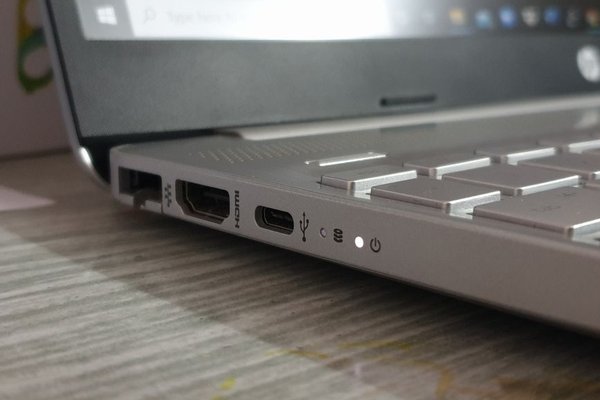
USB-C is the small, rounded, reversible connector now common on modern laptops. It can be used for data, charging, video or several of those jobs at once. The catch is that USB-C describes the connector, not a single guaranteed feature set. One USB-C port may support basic USB data only, while another may also handle fast charging and an external display.
When comparing a USB C laptop, read the manufacturer’s port specifications rather than assuming every Type-C socket is identical. Look for the stated USB data rate, USB Power Delivery support and whether DisplayPort Alt Mode is available. DisplayPort Alt Mode lets a compatible USB-C port send video to a monitor or dock. USB Power Delivery can also supply substantial charging power, with compatible systems and cables supporting up to 240 watts.
Where USB4 fits in
USB4 also uses USB-C and combines high-speed data with display and docking capabilities. Current USB4 specifications include USB 80Gbps implementations, but an actual laptop port may support less. Labels such as USB4, USB 20Gbps or USB 40Gbps therefore tell you more than the USB-C connector shape alone.
USB-A: still useful for everyday accessories
USB-A is the familiar rectangular port used by flash drives, wired keyboards, mice, printers and many older accessories. Thin premium laptops sometimes omit it, but having at least one can save you from using a dongle for simple peripherals. Its speed depends on the USB generation implemented by the laptop, so the physical port alone does not tell you how quickly an external SSD will transfer files.
Thunderbolt: USB-C with high-performance requirements
A Thunderbolt port on a modern laptop uses the same USB-C connector, but Thunderbolt certification adds defined performance and compatibility requirements. Thunderbolt 4 provides 40Gbps connectivity. Thunderbolt 5 raises the baseline to 80Gbps and can use Bandwidth Boost for up to 120Gbps in display-heavy situations.
Thunderbolt matters most if you plan to use a powerful dock, multiple high-resolution monitors, very fast external storage or other bandwidth-heavy hardware. For ordinary charging, a mouse and one monitor, a capable USB-C port may be enough. Check for the Thunderbolt lightning-bolt logo or the laptop’s official specifications rather than assuming every USB-C socket is a thunderbolt port.
HDMI: the simplest direct connection to many displays
HDMI carries digital video and audio and remains one of the easiest ways to connect a laptop directly to a TV, projector or monitor. An HDMI laptop can be especially convenient for presentations and desktop monitors because standard HDMI cables are widely available.
Do not judge an HDMI port only by its shape. The HDMI version, graphics hardware and laptop implementation affect the resolutions and refresh rates it can output. HDMI 2.1 introduced support for higher bandwidth and features such as 4K at high refresh rates, but the laptop still needs appropriate hardware. For gaming or a high-refresh 4K monitor, check the manufacturer’s maximum external-display specification.
Other laptop connections worth checking
DisplayPort
Full-size DisplayPort is uncommon on mainstream laptops, while Mini DisplayPort is mostly found on older models. Modern notebooks often deliver DisplayPort video through USB-C instead. If your monitor has DisplayPort, a USB-C-to-DisplayPort cable can be a clean solution when the laptop supports the required video mode.
SD and microSD card readers
A built-in card reader is valuable for photographers, videographers and anyone who regularly moves files from cameras or drones. Check whether the laptop accepts full-size SD cards or only microSD. Card-reader speed also varies, so creators handling large files should look beyond the mere presence of the slot.
Ethernet and the headphone jack
RJ45 Ethernet provides a wired network connection for stable office networking, large downloads or troubleshooting Wi-Fi. It is common on business and gaming laptops but often removed from thin models, where a USB adapter or dock is needed. The 3.5mm headphone jack remains useful for wired headsets, microphones and speakers without Bluetooth delay or charging concerns.
How to decide which laptop connections you actually need
Start with the accessories you use every week rather than trying to maximize the number of ports. A student who uses a flash drive, wired mouse and classroom projector may value USB-A plus HDMI. A photographer may prioritize an SD card reader. A desk-based professional using two monitors, Ethernet and external storage may get more value from Thunderbolt or USB4 and a single dock.
Consider a one-cable desk setup: you want to charge the laptop, connect a 4K monitor, use Ethernet and access an external SSD. A USB-C port that supports only basic data will not deliver that setup. A properly specified USB-C, USB4 or Thunderbolt connection paired with a compatible dock can. Before buying, compare the laptop’s official port list with the exact monitor, dock and charger you plan to use.
Related topics such as a laptop buying guide, docking station guide and external monitor setup guide are useful when you need to balance connectivity against processor performance, battery life and display requirements.
Frequently asked questions
Is every USB-C laptop port capable of charging?
No. USB-C can support charging through USB Power Delivery, but manufacturers choose which capabilities to implement. Check the laptop’s specifications for charging or power-input support on that specific port.
Is Thunderbolt the same as USB-C?
No. USB-C is a connector type. Thunderbolt is a connectivity technology that uses the USB-C connector on modern laptops and adds defined requirements for data, display and device compatibility.
Can I connect an HDMI monitor through USB-C?
Usually, if the USB-C port supports video output such as DisplayPort Alt Mode or Thunderbolt. You will need a compatible USB-C-to-HDMI adapter, cable or dock, and the laptop must support the monitor’s required resolution and refresh rate.
How many laptop ports do I really need?
There is no ideal number. The better question is whether the laptop has the right ports for your regular accessories. Two versatile USB-C ports may be enough for one user, while another may need HDMI, USB-A, Ethernet and an SD card reader to avoid adapters.
Choose capabilities, not just connector shapes
The best way to compare laptop ports is to match them to what you intend to connect. USB-A remains handy for older accessories, HDMI offers simple display compatibility, and USB-C can be extremely flexible when its charging, video and data capabilities are clearly specified. Thunderbolt and USB4 become especially valuable for docks, fast storage and multi-monitor work. Check the official specification sheet before you buy, because the small symbols beside a laptop’s ports can matter just as much as the headline processor and memory figures.